Strategy
Geofencing Facebook Ads That Convert for Service Businesses
By Nick Georgalos · 13 min read · Updated 2026-08-29
Geofencing Facebook Ads That Convert for Service Businesses ! Marketer adjusting a geofenced ad campaign Yes, Facebook supports precise geofencing through Ads Manager's location targeting: drop a pin, set a radius, and you're fenced.

Yes, Facebook supports precise geofencing through Ads Manager’s location targeting: drop a pin, set a radius, and you’re fenced. For most local goals, Store Traffic, Reach, or Lead Generation outperform generic Conversions campaigns because they’re built around footfall and phone calls rather than online checkout. One caveat before you start: the smallest radius Meta allows is one mile, and location accuracy shifts depending on the device and whether the user has location services turned on.
TL;DR:
- Using a radius smaller than three miles can severely limit your audience, especially in rural areas, reducing ad delivery speed and increasing costs.
- Selecting “people living in this location” rather than “recently in this location” prevents targeting tourists or commuters who won’t convert for residency-based services.
- Combining multiple fencing layers and demographic filters refines lead quality and ensures your campaign reaches the most relevant prospects.
- Proper setup, including pixel and Conversions API, is essential for accurate measurement of store visits and conversions, especially for small audiences.
- Outsourcing geofencing to specialists like FexAds simplifies setup, ensures compliance, and keeps leads directly in your ad account for ongoing optimization.
Table of Contents
- What Geofencing Actually Means (and How It Differs From Geotargeting)
- Can You Geofence on Facebook? The Location Options That Actually Matter
- Step-by-Step: Building a Geofenced Campaign in Ads Manager
- Getting the Fence Geometry and Audience Layers Right
- Creative and Placements That Actually Convert Local Traffic
- Measuring Whether the Fence Actually Worked
- Common Geofencing Mistakes (and Quick Fixes)
- FexAds’ Approach to Geofenced Campaigns for Service Businesses
- Privacy and Compliance Rules You Can’t Skip
- What Geofenced Facebook Ads Actually Cost to Run Well
- When to Run Geofencing In-House vs. Hire It Out
- Let FexAds Handle the Fence While You Handle the Leads
- Sources
What Geofencing Actually Means (and How It Differs From Geotargeting)
Geofencing draws a virtual perimeter around a specific point, usually a store, event, or competitor’s address, and shows ads only to phones inside that perimeter, as explained in this overview of geotargeted ads. Meta builds this signal from GPS, Wi-Fi networks, cell tower pings, and check-ins, then blends them to estimate where a device actually sits, according to Salesforce’s overview of geofencing technology.
Geotargeting, by contrast, usually means the city, ZIP code, or state you pick from a dropdown. It’s fine for brand awareness. It’s a blunt instrument for anything that depends on someone walking through a specific door within a specific window.
Common use cases where the fence beats the ZIP code:
- A final expense agent targeting a two-mile radius around a senior community center
- A retail promotion timed to a weekend sale at one location, not the whole metro
- A booth at a trade show, fencing the convention hall itself
- Monitoring foot traffic near a competitor’s storefront
Can You Geofence on Facebook? The Location Options That Actually Matter
You can, but which “include” option you pick at the ad set level decides whether your leads are worth anything. Meta gives you four choices: people living in or recently in this location, people living in this location, people recently in this location, and people traveling in this location, according to Meta’s own location targeting guidance.
Here’s where marketers get burned. “Living in or recently in” is the default, and it’s the broadest. It captures visitors, commuters, and tourists passing through, along with actual residents. For a life insurance agent licensed only in specific states, that default can generate leads from people who technically don’t live in the coverage area, wasting spend on prospects who can never become clients.
The fix is almost always people living in this location for anything tied to residency, licensing, or a local storefront. Reserve traveling in for hospitality, tourism, or event-based offers where transient visitors are the whole point.
A quick gut check before you launch:
- Selling something residents need long-term? Use “living in.”
- Promoting a weekend event or pop-up? Use “recently in” or “traveling in.”
- Running a franchise with strict service-area boundaries? Stack “living in” with a tight radius.
Radius and reach matter together. Meta’s estimated audience size updates in real time as you adjust the pin and mileage, and a fence under five miles in a rural market can shrink your reachable audience so much that delivery slows to a crawl. Watch that estimate before you publish, not after.
Step-by-Step: Building a Geofenced Campaign in Ads Manager
Here’s the sequence that keeps you from rebuilding the campaign three days in.
- Pick your objective first. Store Traffic optimizes toward people likely to visit a physical location and unlocks the “Get Directions” call-to-action, according to Social Media Examiner’s local business ad guide. Lead Generation is better for service businesses collecting phone numbers and emails. Reach works when you just need saturation for a one-day event.
- Drop your pin at the ad set level. Search the address or click the exact spot on the map, then set your radius anywhere from 1 to 50 miles.
- Add more pins if you have multiple locations. You can bulk-upload addresses instead of clicking one at a time, which saves real time if you’re running a franchise with a dozen storefronts, per geoPlugin’s breakdown of Facebook’s radius and exclusion tools.
- Create exclusion pins around areas that generate junk traffic, like a competing agency’s office park or a neighborhood outside your license.
- Layer your audience. Add age, income, or interest filters on top of the geography, and load any custom or lookalike audiences you already own.
- Choose placements deliberately. Default to Automatic Placements only if you’ve tested it. For foot-traffic goals, mobile Feeds and Stories tend to convert better than Audience Network.
- Set your budget and schedule, then preview the ad. Click “Get Directions” yourself to confirm it routes correctly.
- Name the ad set something you’ll actually recognize in three weeks (“Downtown 3mi Living In FE”) instead of the auto-generated default.
Pro Tip: Duplicate the ad set before you change the radius. Running a 2-mile and a 5-mile version side by side tells you exactly where the drop-off in lead quality starts, instead of guessing.
Getting the Fence Geometry and Audience Layers Right
Radius size should match how people actually move through the area, not a round number you picked out of habit. A walkable urban neighborhood might only need 0.5 to 1 mile. A suburban or rural service area often needs 5 to 15 miles just to hit a usable audience size.
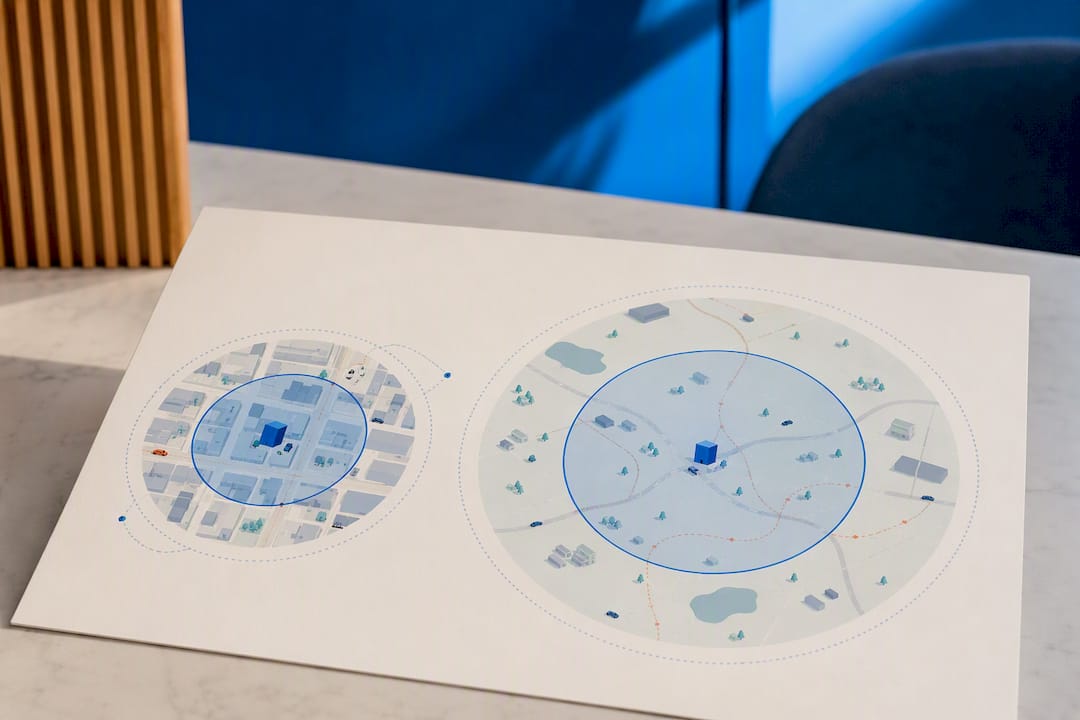
Exclusion pins do more than block bad geography. Combine two overlapping fences with an exclusion in the middle, and you can carve out a sub-mile zone Meta’s minimum radius wouldn’t otherwise allow.
Layering is where the real gains show up. Location alone catches everyone in the fence; adding demographic filters, interest signals, or a custom audience of past website visitors narrows it down to the people worth paying for. Media buyers who treat location as a structural decision, not an afterthought, tend to see cleaner lead quality across the board, based on Meta’s own guidance on location targeting.
- Test lunch-hour dayparting for restaurant or retail promos
- Run event-window scheduling that starts a few hours before doors open
- A/B test “living in” against “recently in” on identical creative to isolate the impact of the location filter alone
Pro Tip: If you serve a specific state or license territory, pair a tight radius with the “living in” filter rather than relying on radius alone. Radius catches geography; to include filter catches legitimacy.
Creative and Placements That Actually Convert Local Traffic
Copy built for a geofence should reference the fence. Mention the neighborhood, the landmark, or a same-day deadline, and pair it with a “Get Directions” or “Call Now” button rather than a generic “Learn More.”
Prioritize mobile placements. Feeds, Stories, and Marketplace catch people while they’re out and moving, which is exactly when a geofenced ad is most relevant.
- “Show this ad at checkout for 10% off” gives you a trackable, low-effort proof point
- “Open until 8pm, 3 minutes from here” ties urgency to distance
- A time-stamped offer (“this weekend only”) pressures faster action than an evergreen discount
Measuring Whether the Fence Actually Worked
Store visit reporting sounds great until you realize it needs enough traffic volume and enough devices with location permissions turned on to produce a usable number, according to ClicksGeek’s local advertising guide. Smaller advertisers often don’t hit that threshold.
When that happens, lean on proxies instead: direction-click counts, call-button clicks, and coupon redemption codes tied to the ad. For phone-based businesses, uploading offline events through the Conversions API closes the loop between an ad click and an actual sale or booked appointment, letting you attribute real outcomes back to specific ad sets. Set up two measurement methods in parallel rather than trusting a single number, since invalid or low-quality ad traffic already costs advertisers billions industry-wide, and a single soft metric can mask which spend is actually wasted.
- Direction clicks: cheap, immediate, but not a guaranteed visit
- Call clicks: strong signal for service businesses
- Coupon redemption: the cleanest proof, but requires a physical or verbal code
Common Geofencing Mistakes (and Quick Fixes)
Most underperforming geofenced campaigns trace back to one of a handful of setup errors.
- Wrong location filter. Leaving the default “living in or recently in” active pulls in tourists and commuters who’ll never convert.
- Radius too wide. A 25-mile fence around a storefront defeats the point of geofencing entirely.
- No exclusion pins. Skipping exclusions lets a competitor’s parking lot or an irrelevant district eat your budget.
- Ads showing to distant users. If direction clicks come from far outside the fence, check for a stale audience or a placement issue, not just the pin itself.
- Unnamed, un-isolated tests. If you can’t tell which ad set produced which result, rename everything and separate one variable per test.
FexAds’ Approach to Geofenced Campaigns for Service Businesses
Fexads builds these fences for licensed life insurance agents running final expense, IUL, and mortgage protection campaigns. Every lead lands in the agent’s own ad account. Ads are targeted state-by-state to keep leads inside a licensed territory, and pixel and Conversions API setup happen before launch, not after the first troubleshooting call.
Privacy and Compliance Rules You Can’t Skip
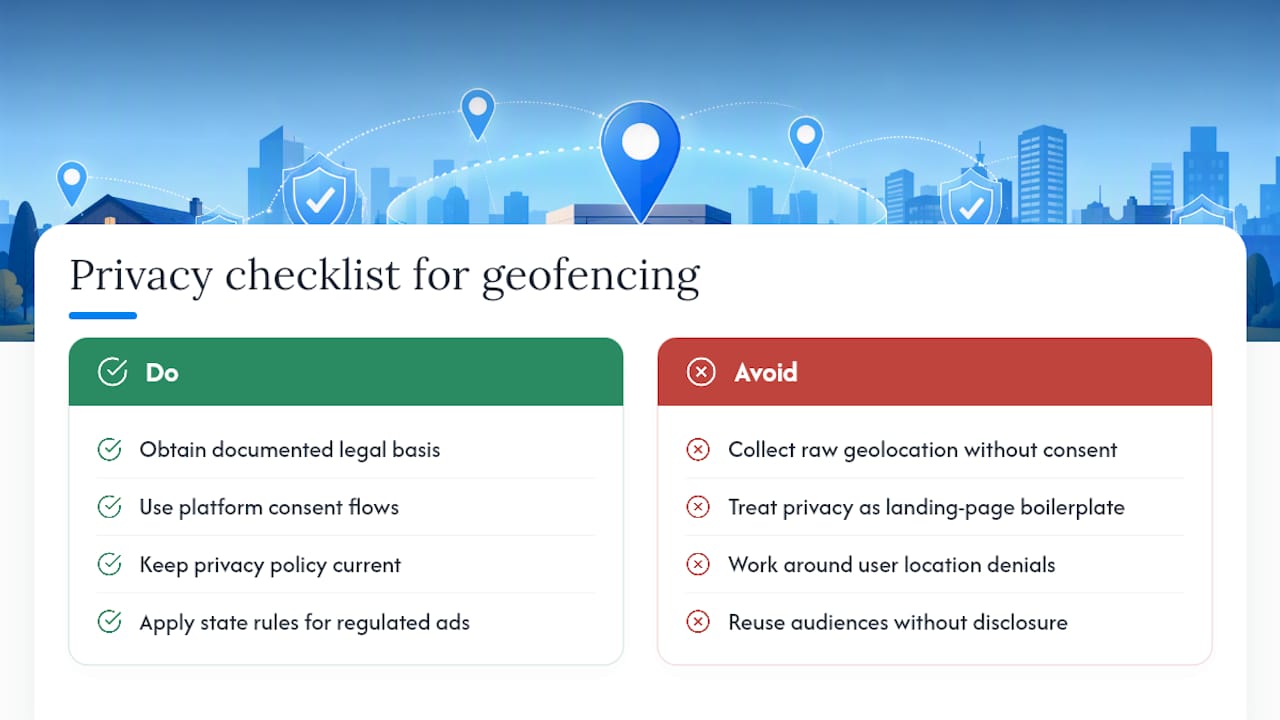
Geofencing runs on location data, which puts it squarely inside privacy law rather than outside it. If you have website visitors or ad audiences in the European Union, GDPR requires a documented legal basis for processing location signals, and consent is the practical route most advertisers take. California’s CCPA (and its expansion under the CPRA) gives residents the right to know what location data is collected and to opt out of its sale, which affects how you can build and reuse location-based custom audiences.
Meta’s own location targeting sits on top of user-level device permissions. If someone has denied location access, the platform falls back to less precise signals like IP address or self-reported location, which is part of why accuracy varies from device to device.
Practically, that means three things for advertisers. First, don’t collect or store raw geolocation data yourself unless you have a clear, disclosed reason and a compliant consent flow. Second, keep your own privacy policy current if you’re running pixel tracking or building custom audiences from site visitors, since both practices touch personal data under GDPR and CCPA. Third, if you serve regulated products like insurance, layer in whatever state-specific advertising compliance rules apply on top of the platform’s privacy requirements. None of this is optional, and treating it as boilerplate at the bottom of a landing page instead of a real operational step is how advertisers end up with complaints or account restrictions.
The good news: Meta’s platform-level consent and permission handling covers most of the heavy lifting. Your job is mostly disclosure, honest audience-building practices, and not trying to work around a user who’s already said no to location tracking.
What Geofenced Facebook Ads Actually Cost to Run Well
Geofencing itself doesn’t carry a special line-item cost inside Ads Manager. What changes is how your budget behaves once you shrink the audience. A tight one-mile radius in a mid-sized suburb might only reach a few thousand people, and Meta’s delivery system needs enough signal to optimize efficiently. Spread too little budget across too small an audience and you’ll see slow delivery and higher costs per result than a broader campaign would produce.
A workable starting budget for a single-location geofenced test usually needs to run long enough, and wide enough, to leave the learning phase, which typically takes about 50 optimization events per ad set. If your fence is small, extend the testing period rather than cutting it short, since a tiny audience takes longer to accumulate that data.
Cost per lead varies heavily by product and market. Final expense and mortgage protection campaigns run at different price points than broader retail promotions, largely because of audience size, competition for the same demographic, and how the algorithm values insurance-related actions. Running a rough number through a cost-per-lead calculator before you commit real budget beats guessing, especially if you’re new to a specific state or ZIP code.
The other lever is exclusions. Every exclusion pin shrinks your addressable audience further, which is good for relevance but bad for delivery speed if you overdo it. Balance a tight fence against a wide enough net that Meta’s system has room to find the right people inside it.
When to Run Geofencing In-House vs. Hire It Out
Geofencing itself is simple. Pixel setup, Conversions API, and CRM integration are where in-house teams stall, and speed-to-lead is what actually separates a good campaign from a wasted one.
— Nick
Let FexAds Handle the Fence While You Handle the Leads
Fexads is the alternative to guessing your way through Ads Manager location settings: agents get campaigns built specifically around their licensed states, with pixel and Conversions API tracking installed from day one, so every lead lands directly in the agent’s own account instead of getting resold to three other agents.
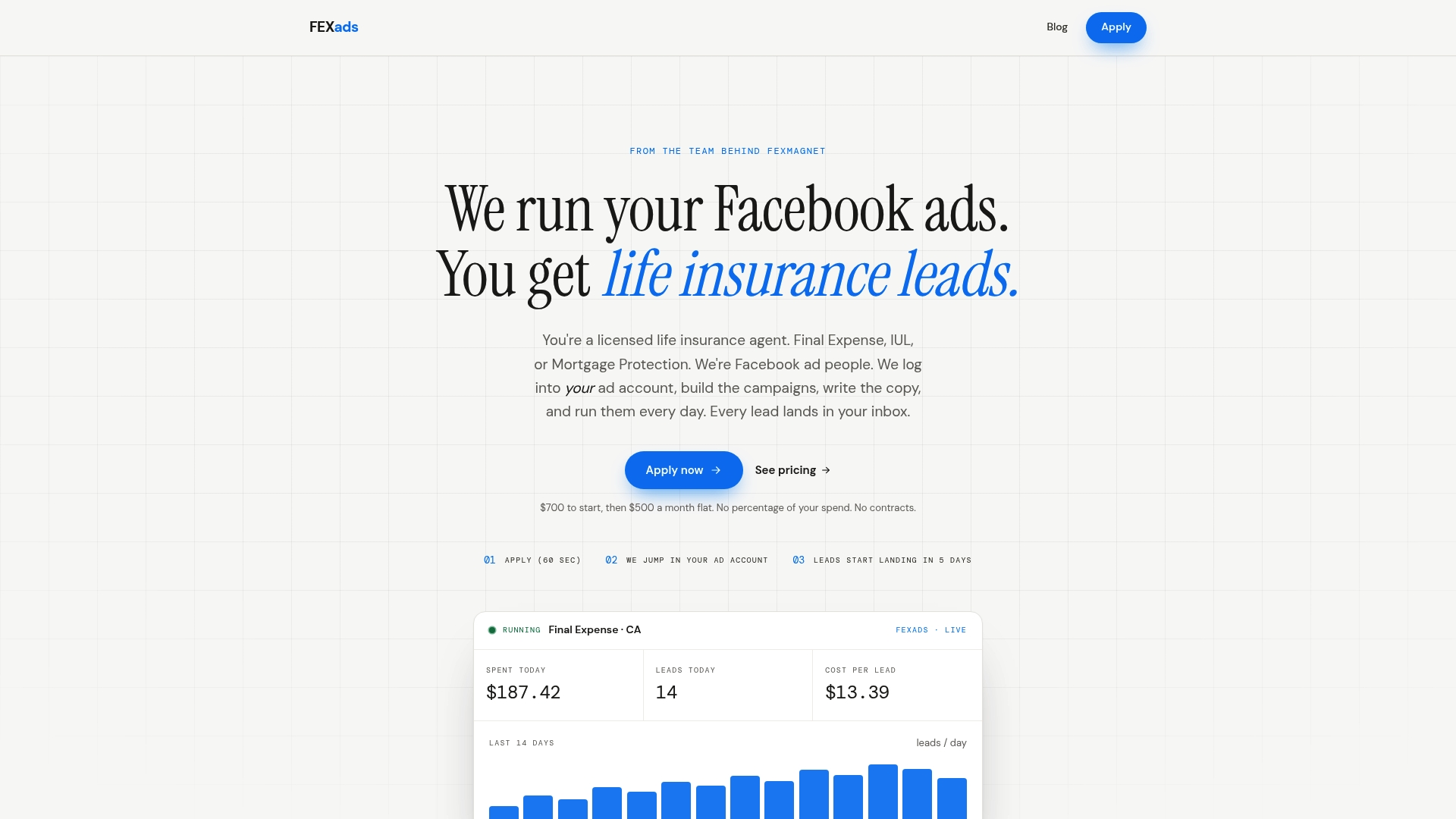
That includes custom campaign setup, ongoing daily optimization, and creative refreshes so the same tired ad isn’t still running six months later. Because leads generate inside your own ad account, you own the data and can keep refining the audience over time instead of starting from zero with every new batch of purchased leads. If you’re targeting a specific market, the state-specific campaign pages show how Fexads adapts messaging and targeting by region, including for Indiana and Michigan agents.
Run your numbers through the CPL calculator first, then reach out through Fexads to get a campaign audit built around your license and your offer.
Sources
- How to use location targeting for ads (Facebook / Meta)
- Geofencing in Facebook: Locate Your Audience | geoPlugin
- How to Run Facebook Ads for Local Businesses: Driving Foot Traffic (Social Media Examiner)
- Facebook local advertising guide (ClicksGeek)
Recommended
Want us to run your FE ads?
$200 to launch, custom website included. $500 a month flat, starting at your first sale.
Apply now