Strategy
Agents: Fix Facebook UTM Token Errors and Rename Drift
By Nick Georgalos · 13 min read · Updated 2026-09-02
Agents: Fix Facebook UTM Token Errors and Rename Drift ! Specialist configuring ad destination settings Set your UTM parameters in the ad's URL parameters field under Ad Destination, not in the website URL box, and build the string with utm source=facebook , utm medium=paid social , plus campaign and content fields tied to Meta's dynamic tokens.

Set your UTM parameters in the ad’s URL parameters field under Ad > Destination, not in the website URL box, and build the string with utm_source=facebook, utm_medium=paid_social, plus campaign and content fields tied to Meta’s dynamic tokens. Favor numeric IDs like {{campaign.id}} over campaign names so a rename doesn’t sever your data history. Run Meta Pixel and Conversions API alongside those UTMs, then click your own ad from a clean session and confirm the tags land correctly in GA4 before you scale spend.
TL;DR:
- Adding UTM parameters in Facebook ads requires placing them specifically in the URL parameters field under Ad > Destination, not in the website URL box.
- Large accounts often encounter tracking inconsistencies because each ad needs its own URL parameters, which are not inherited from campaign or ad set levels.
- Using dynamic tokens like {{campaign.id}} and establishing a standardized, lowercase, hyphenated template at the account level prevents broken or inconsistent tracking.
- UTM tags are essential for cross-platform attribution in GA4, as Pixel and fbclid alone do not provide readable source or medium data externally.
- Verify tracking by inspecting landing URLs, the _fbc cookie, and confirming data matches in GA4’s real-time reports before scaling campaigns.
Table of Contents
- Where Do You Add UTM Tracking to Facebook Ads?
- What’s the Best UTM Template for Facebook and Meta Ads?
- Why Do UTM Tags Stop Working on Facebook Ads?
- How Do fbclid, Pixel, and Conversions API Fit With UTM Tags?
- How Do You Test and Verify Facebook UTM Tracking?
- Practitioner Notes on Keeping UTM Tracking Clean
- Should You Build UTM Tracking Yourself or Hire It Out?
- How Fexads Keeps Your Facebook Ad Tracking Honest
- Where to Verify the Details Yourself
- Sources
Where Do You Add UTM Tracking to Facebook Ads?
Meta puts the UTM field in one specific place, and it’s easy to miss if you’re used to Google Ads’ auto-tagging. Inside Ads Manager, open the ad (not the campaign or ad set), go to Ad > Destination, and look for URL parameters below the Website URL box. That field is where UTM tracking for Facebook ads actually lives. If you’re building through the Marketing API, the equivalent is the url_tags field on the Ad object itself.
This matters because Meta’s structure has no inheritance. A campaign-level or ad-set-level tag does not exist and will not trickle down to your ads, as Meta’s own documentation on adding URL parameters confirms. Every single ad needs its own URL parameters entry, which is exactly why large accounts run into inconsistent tagging: someone duplicates fifty ads and forgets the string carries over from the template, or it doesn’t, depending on how the duplication happened.
A few placement quirks catch people off guard:
- Boosted posts attach parameters through a slightly different flow than natively built ads, so check the boosted post’s own destination settings rather than assuming it matches your regular ad templates.
- Dynamic creative ads apply the same URL parameters string across every creative combination, so token-based variables do the heavy lifting instead of manual duplication.
- Lead ads are the exception that trips up almost everyone. They don’t send the click to a destination URL at all. The person fills out a form inside Facebook or Instagram and never leaves the platform, so there’s no landing page to attach a UTM string to. For lead ads, you track through Meta’s own lead tracking parameters and map form fields directly into your CRM, a workflow Meta documents specifically for Instant Forms.
What’s the Best UTM Template for Facebook and Meta Ads?
You don’t need to reinvent this every time you launch a campaign. A stable template, built once and reused, is what separates clean reporting from a GA4 account full of mystery traffic.
Start simple. utm_source=facebook, utm_medium=paid_social, and a utm_campaign value are the non-negotiables. From there, dynamic tokens let Meta fill in the blanks automatically at the moment someone clicks, instead of you hand-typing campaign names into every single ad.
The Terminus guide to Meta UTM tracking lays out the core logic well: use names for readability in early testing, then switch to IDs once a campaign structure is locked in for reporting. Names are easy to scan in a dashboard. IDs don’t break when someone on your team renames a campaign three weeks in.
A catalog of Meta’s dynamic tokens shows the full list available, but {{campaign.id}}, {{adset.name}}, {{ad.id}}, {{site_source_name}}, and {{placement}} cover the vast majority of use cases. {{site_source_name}} tells you whether the click came from Facebook or Instagram specifically, and {{placement}} breaks out Feed versus Stories versus Reels, both of which matter once you’re spending enough to optimize by surface.
Two small habits prevent most future headaches:
- Keep everything lowercase and hyphenated, never spaced. GA4 treats
Facebookandfacebookas two different sources, so a mixed-case template fragments your own data before it even reaches the reports. - Set an account-level default template where your ad platform allows it. This removes the chance that a new team member launches twenty ads without any tracking string at all, a mistake that tends to originate from manual, one-off link building.
Why Do UTM Tags Stop Working on Facebook Ads?
Most broken tracking traces back to one of a handful of repeatable errors, and once you know the list, catching them takes about thirty seconds per ad.
- Tokens pasted into the Website URL field instead of URL parameters. Meta renders
{{campaign.name}}as literal text on the landing page instead of substituting the actual campaign name, and your analytics platform records garbage. - Wrong brace syntax. Meta tokens require double curly braces. A single brace, a missing closing pair, or an extra space inside the braces (
{{ campaign.id }}) causes the token to fail silently rather than throw an error you’d notice. - Inconsistent capitalization across ads. One ad uses
Facebookand another usesfacebook, and GA4 treats them as separate sources, which fragments a single campaign’s data into two rows. - Leaning on Pixel or fbclid alone, with no UTMs at all. Pixel data optimizes delivery inside Meta’s own reporting, but it does nothing for how your traffic shows up in GA4 or any other analytics platform outside Meta’s walls.
- Using human-readable campaign or ad names in the template, then renaming those campaigns later. History for that dimension effectively resets, because the join key you were relying on no longer matches what it used to represent, an issue covered in detail around dynamic UTM parameter fragility.
There’s a sixth mistake worth naming on its own: forgetting utm_source or utm_medium entirely, or filling them with a nonstandard value like utm_medium=ad instead of paid_social. Google’s own documentation on how Analytics classifies campaign traffic is explicit that malformed or missing source and medium values push sessions into “(not set)” or “Unassigned,” which is the analytics equivalent of a black hole. You can’t optimize a channel you can no longer see.
Pro Tip: Build your UTM string once in a spreadsheet or a dedicated link builder, save it as your account default, and never hand-type a tracking string into an individual ad again. Manual entry is where almost every capitalization and syntax error originates, a pattern documented across teams managing Facebook ad tracking at scale.
How Do fbclid, Pixel, and Conversions API Fit With UTM Tags?
These three signals do different jobs, and confusing them is why a lot of marketers think UTMs are optional once Pixel is installed. They’re not.
fbclid is an opaque click identifier Meta appends to your landing page URL automatically. Its entire purpose is matching that click back to Pixel and Conversions API events so Meta’s own reporting and its algorithm can attribute a conversion to the right ad. It carries no readable campaign, source, or medium information, and it was never designed to. As the Terminus breakdown of Meta tracking puts it plainly, fbclid is not a UTM substitute. GA4 doesn’t parse it into source or medium fields, so if fbclid is the only tag on your link, your analytics platform has no idea the traffic came from Facebook at all.
That’s the division of labor:
- UTMs feed GA4 and any other analytics platform that reads standard campaign parameters, giving you readable attribution outside Meta’s own dashboard.
- fbclid feeds Meta’s internal matching between a click and a Pixel or Conversions API event, which is what powers Meta’s optimization and reporting.
- Conversions API sends conversion events server-side, recovering data that browser-based Pixel tracking misses when ad blockers, iOS privacy settings, or in-app browsers interfere.
Combining all three is what closes the gap, an approach also recommended for covering each signal’s blind spots. Pixel handles real-time optimization signals back to Meta. CAPI recovers events that browser tracking would otherwise drop. UTMs give you the readable, cross-platform attribution trail that neither Pixel nor fbclid provides on their own.
One wrinkle worth planning for: when someone clicks your ad inside Facebook’s in-app browser, then later opens the link in Safari or Chrome, or switches devices entirely, the UTM context attached to that first click can get lost in the handoff. Persisting that context server-side, tied to a first-party cookie or a hashed identifier, re-associates the later session with the original UTM so your Conversions API events still carry accurate attribution instead of showing up as direct or unattributed traffic.
Expect Meta’s reported conversions and GA4’s session counts to never match exactly, even with everything configured correctly. They use different attribution windows and different methods for stitching together click paths, so pick one platform as your source of truth for spend decisions and treat the other as a directional check rather than chasing a number that will match perfectly.
How Do You Test and Verify Facebook UTM Tracking?
Skipping verification is how a broken template runs for three weeks before anyone notices the campaign data doesn’t add up. Run through this sequence before scaling any new campaign structure, and again any time you change your tagging convention.
- Click your live ad from a clean, private browser session on both desktop and mobile. Don’t test from an account that’s already logged into Facebook with cached data. Inspect the resulting landing page URL and confirm every
utm_*parameter appears correctly, along withfbclid. - Check that the
_fbccookie is set in your browser’s developer tools after the click. This cookie is what lets Conversions API match the session back to the original ad later. - Open GA4’s Realtime report and go to Traffic acquisition. Confirm the session shows
facebookas source andpaid_socialas medium, with your campaign identifier appearing correctly, following the click-and-verify approach outlined for Meta ad tracking. - For lead ads specifically, submit a test lead and confirm it appears in both Meta’s lead data and your CRM with the right fields mapped, since there’s no URL to inspect for this ad type.
- Schedule a recurring smoke test every quarter, and run one immediately whenever you change a naming convention, add a new campaign structure, or onboard a new team member to ad launches.
| Check | Where to look | What confirms success |
|---|---|---|
| UTM string intact | Landing page URL bar | All utm_* parameters present, lowercase, correctly formatted |
| Click matching | Browser dev tools | _fbc cookie set with a recent timestamp |
| GA4 attribution | GA4 Realtime, Traffic acquisition | Source shows facebook, medium shows paid_social |
| Lead ad mapping | CRM and Meta lead data | Form fields match and lead record is complete |
Practitioner Notes on Keeping UTM Tracking Clean
Enforcement beats correction. A naming convention only works if every person launching ads uses it, which is why a single shared template, lowercase and hyphenated with IDs baked in, matters more than any individual person’s tagging skill. Route every ad through one link builder or one saved template so no one hand-types a UTM string from memory.
For agents in regulated verticals like final expense or IUL, this enforcement gap is exactly where a managed setup earns its keep, since one mistagged campaign can quietly cost weeks of clean attribution data. Fexads’ Facebook ads glossary breaks down the terminology if you’re still getting oriented, and the CPL calculator helps once your tracking is solid enough to trust the numbers behind cost per lead. The ROI tracking guide walks through connecting tagged clicks all the way to closed policies.
Should You Build UTM Tracking Yourself or Hire It Out?
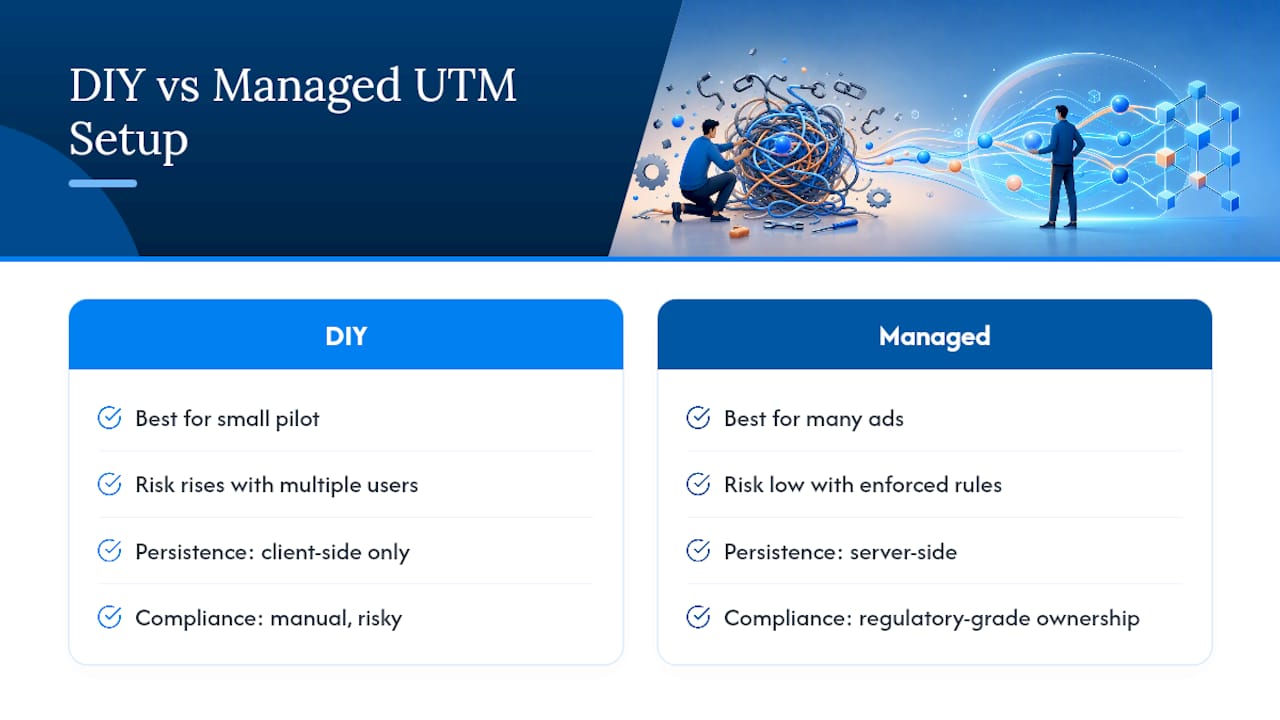
DIY works fine for a small pilot campaign or a single, simple funnel where one person owns every ad that goes live. The moment you add a second person launching ads, a lead ad flow, or a compliance requirement around exclusive lead ownership, the odds of a silent tagging failure climb fast.
Hire out the setup when you need guaranteed consistency across dozens of ads, server-side persistence that survives in-app browser handoffs, or regulatory-grade data ownership. Run through a short checklist before deciding: how many ads launch per week, how many steps sit between click and sale, whether your lead data has compliance requirements attached, and how fast a broken tag would actually get caught. A managed provider that enforces naming conventions and owns validation end-to-end removes the risk that a single renamed campaign quietly erases your attribution history.
— Nick
How Fexads Keeps Your Facebook Ad Tracking Honest
Fexads is the alternative to guessing whether your Facebook leads are actually converting: we build the UTM tracking, Pixel, and Conversions API setup directly inside your own ad account, and we enforce the naming convention so a rename never breaks your reporting history.
Every lead Fexads generates stays exclusive to your account, with no shared or rented data, so the attribution trail you’re tracking belongs entirely to you, not to a lead vendor reselling the same names to three other agents. That matters as much for final expense as it does for IUL or mortgage protection, where speed to lead and clean data separate a profitable campaign from a wasted one. If you’re managing this yourself and want to see what a fully enforced setup looks like across a real account, check FE Facebook ads by state to see how Fexads structures campaigns for licensed agents, or run your numbers through the CPL calculator to see where your current cost per lead stands before you make the switch.
Where to Verify the Details Yourself
Meta’s own URL parameters documentation is the definitive source for how the ad-level field works, and its lead ad tracking guide covers the Instant Forms exception in full. For the analytics side, Google’s Campaigns help article explains exactly how GA4 parses source and medium values. For the practitioner detail on dynamic tokens and server-side persistence, the Terminus guide to Meta UTM tracking is worth bookmarking alongside your own tagging template.
Sources
- Meta and Facebook Ads UTM Tracking: The 2026 Definitive Guide - Terminus Blog
- Campaigns - Analytics Help
- Set up tracking parameters for your lead ads with Instant Forms
Recommended
Want us to run your FE ads?
$200 to launch, custom website included. $500 a month flat, starting at your first sale.
Apply now