Strategy
Add a 10–20% Buffer to Facebook Ads Spending Limit for Agents
By Nick Georgalos · 13 min read · Updated 2026-09-20
Add a 10–20% Buffer to Facebook Ads Spending Limit for Agents ! Agent reviewing Facebook ad spending controls A Facebook Ads spending limit is a hard cap in Ads Manager that automatically pauses every ad in the account once total spend hits the number you set.

A Facebook Ads spending limit is a hard cap in Ads Manager that automatically pauses every ad in the account once total spend hits the number you set. It’s not the same as a budget, which shapes how Meta paces and optimizes delivery. You’ll find the control under Ads Manager → Billing & Payments → Payment Settings, and once you set it, it’s active immediately.
TL;DR:
- Setting a higher account spending limit (10 to 20 percent above your planned monthly spend) prevents unexpected ad pauses during scaling.
- Spending limits are cumulative from when they are first set and cannot be reset to zero unless you start a new account or billing cycle.
- Only accounts with admin or finance editor roles can view or modify the spending limit, limiting access for some team members.
- Daily spend can temporarily double your budget on strong days, but your monthly billed total remains capped at around 30 times your average daily budget.
- Regularly review your spending limit and account spend to avoid unintentional pauses, especially before increasing daily budgets during scaling efforts.
Table of Contents
- How to Set, Change, or Remove a Facebook Ads Spending Limit
- Account Limits vs Campaign Limits vs Daily Budgets: What’s the Difference
- Why Your Daily Spend Can Exceed Your Budget
- Setting Spending Limits Without Sabotaging Your Own Campaigns
- What to Check When Your Ads Stop Delivering
- How FexAds Handles Budgets and Spending Limits for Agents
- The Spending Limit Is a Monthly Decision, Not a Setup Task
- Get Your Facebook Ad Budgets Managed by Specialists
- Where to Verify These Rules Yourself
- Sources
- FAQ
How to Set, Change, or Remove a Facebook Ads Spending Limit
Every account spending limit lives in one place, and the path rarely changes even when Meta tweaks the Ads Manager interface around it. Here’s the exact route on desktop:
- Open Ads Manager and click the hamburger menu, then go to Billing & Payments.
- Select Payment Settings (sometimes labeled “Settings” depending on your account type).
- Find the Account spending limit section near the bottom of the page.
- Click Set Limit, enter your dollar amount, and confirm.
- To raise or lower it later, click Edit, adjust the number, and save. Changes apply right away.
- To remove the cap entirely, click Remove Limit. Your campaigns will then spend according to their own budgets with no lifetime ceiling.
On mobile, the Meta Ads Manager app buries this slightly differently: tap your account name, then Billing, then look for Account spending limit under payment details. The core function is identical.
One detail trips up a lot of advertisers: “resetting” the limit isn’t a separate button. If you remove a limit and set a new one, the amount already spent still counts toward that lifetime total unless you’re starting a genuinely new billing cycle or ad account. According to Meta’s own guidance, the spending limit is cumulative from the date you first set it, not a rolling monthly figure. That distinction matters if you’re trying to “reset” spend to zero. You generally can’t zero out the amount spent counter on an existing account. You either raise the ceiling or work with a fresh account.
Permissions matter here too. Only people with admin or finance editor roles on the Business Manager can view or change the account spending limit. If you manage an account for a client or as part of an agency setup, check your Meta Partner Access level before assuming you can adjust billing controls. Standard “advertiser” or “analyst” roles typically can’t touch this setting, which explains a surprising number of “why can’t I find the spending limit” support tickets.
It’s easy to miss if you’re not checking the account daily, and it’s the only heads up you’ll get before ads pause.
Account Limits vs Campaign Limits vs Daily Budgets: What’s the Difference
These three controls sound similar and get confused constantly, but they do genuinely different jobs.
- Account spending limit: A lifetime cumulative cap across the entire ad account. Once total spend hits this number, every campaign in the account pauses. Not just one.
- Campaign spending limit: A cumulative cap on a single campaign. Useful for a time-boxed promotion or a controlled test where you want that campaign to stop at, say, $2,000 regardless of how long it runs.
- Daily budget: Not a limit at all in the strict sense. It’s a pacing instruction that tells Meta’s delivery system roughly how much to spend each day, and Meta actively optimizes around it.
- Lifetime budget: A total amount for a campaign’s entire scheduled run, letting Meta pace spend across the whole date range instead of day by day.
Here’s the part that catches people off guard: spending limits don’t influence Meta’s delivery algorithm at all. Budgets do. If you set a daily budget of $50, Meta’s system will try to find you the best results at roughly that daily spend, adjusting bids and audience delivery in real time. A spending limit just sits in the background as a tripwire. It has zero effect on optimization, targeting, or pacing until the moment it’s hit, at which point it shuts everything off instantly.
That’s why the right move is usually to use both, for different jobs. Set daily or lifetime budgets at the campaign level to control pacing and let the algorithm do its work, following proven conversion rate optimization tips to improve results. Set an account spending limit as a backstop, a number so far beyond your planned spend that it should never actually get triggered under normal operation. Reserve campaign spending limits for genuinely short-lived tests, like a two-week lead-gen promotion you want capped no matter what.
Why Your Daily Spend Can Exceed Your Budget
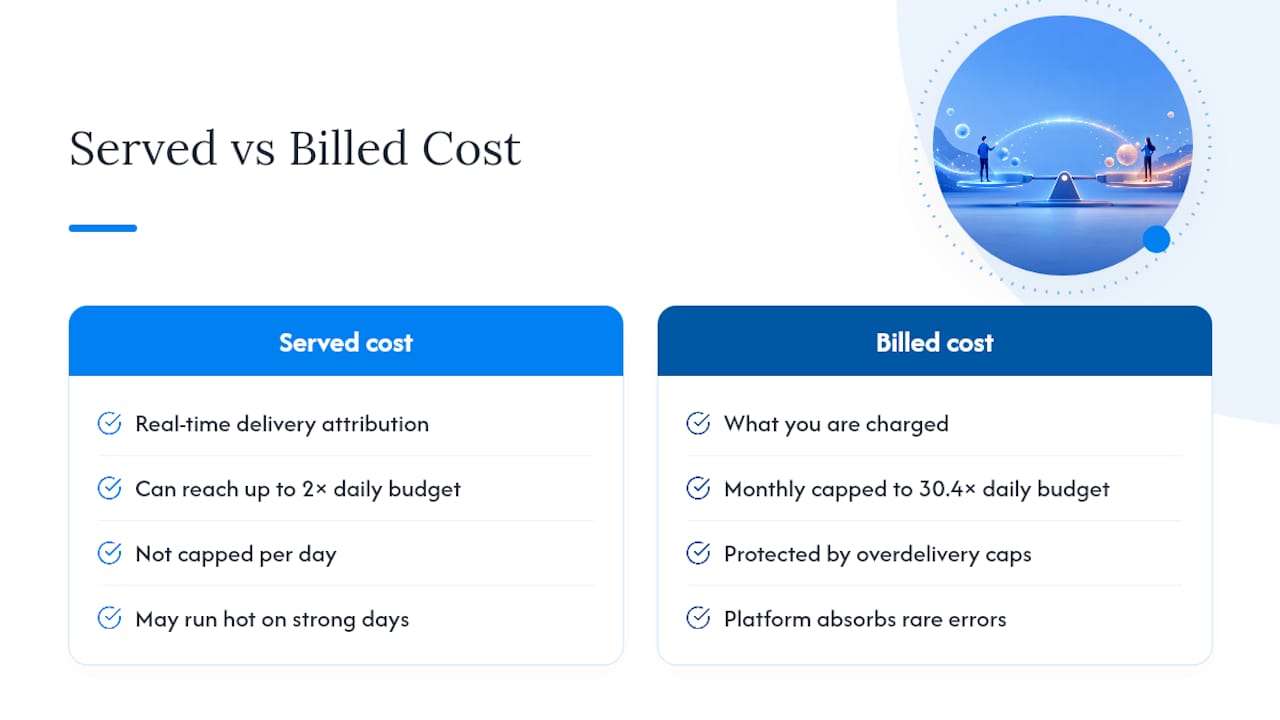
Meta doesn’t spend exactly your daily budget every single day, and that surprises a lot of advertisers the first time they see it happen. Meta’s own documentation confirms that for many campaigns, daily spend can run up to double the average daily budget on a given day, as the system shifts spend toward days and moments it predicts will perform better.
The monthly side works differently. Meta caps monthly charges using a 30.4 multiplier applied to your average daily budget, which accounts for the average number of days in a month across a year.
Although a single day’s served spend may sometimes exceed your average daily budget by a significant margin, the total billed cost over any monthly period is capped to roughly 30 times your average daily budget.
Here’s the mechanism behind that gap: Meta distinguishes between served cost and billed cost. Served cost is what the system attributes to delivery in real time, which can run hot on a strong day. Billed cost is what actually hits your payment method or account spending limit tally, and it’s this second number that the overdelivery caps are built to protect. In rare edge cases, if a technical error causes served costs to exceed what should have been billed, the platform absorbs that difference rather than passing it to the advertiser. This is uncommon enough that most agents will never encounter it, but it’s part of why the daily and monthly figures aren’t identical percentages of each other.
Setting Spending Limits Without Sabotaging Your Own Campaigns
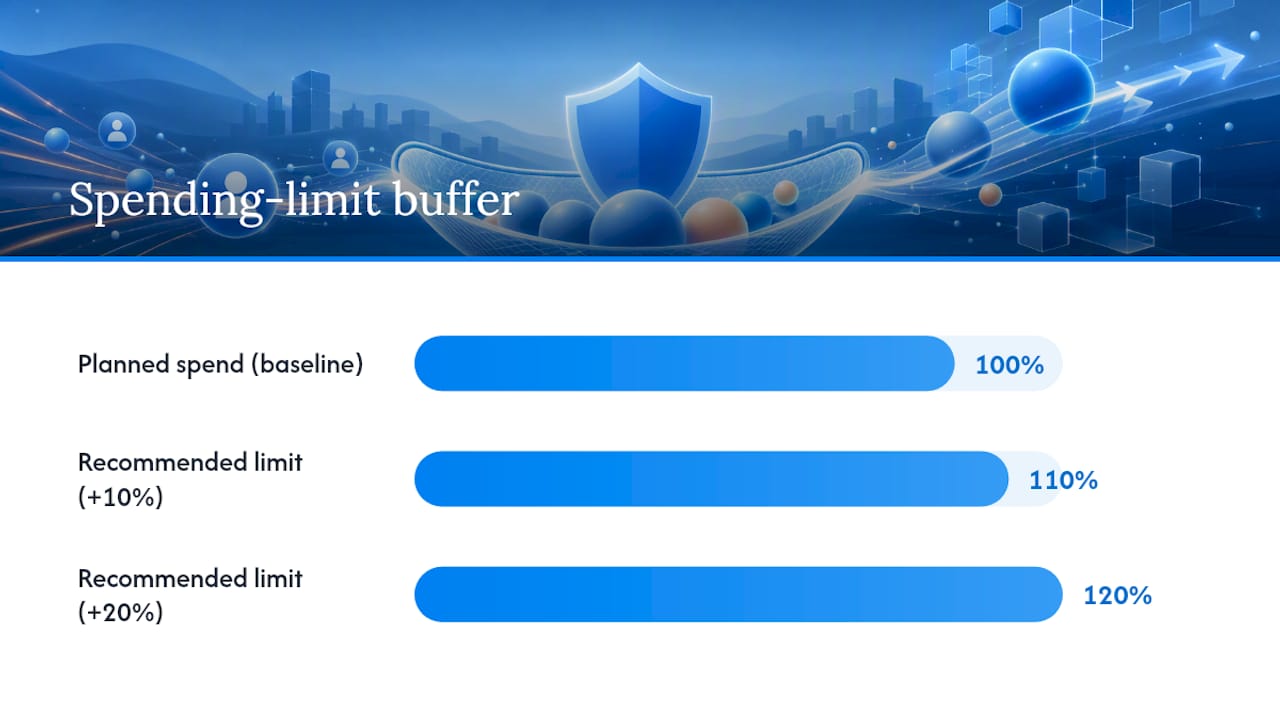
The single most common mistake is setting the account spending limit too close to actual planned spend. A limit that sits right at your projected monthly number will get triggered by a single strong week, pausing every active campaign, including the ones that were finally hitting their stride in the learning phase.
- Build in a buffer of roughly 10% to 20% above your realistic planned spend, so normal fluctuation in delivery doesn’t trip the cap.
- Never set or change a spending limit mid learning phase unless you’re forced to. Interrupting an ad set before it exits learning phase resets its optimization progress, and the algorithm starts relearning your audience from scratch.
- Avoid stacking redundant limits. Setting a tight campaign spending limit inside an account that also has a tight account-level limit just doubles your chances of an unexpected pause with no added protection.
- Limit billing access to one or two trusted admins. Wider access increases the odds someone changes a setting without telling the rest of the team.
- Put a recurring calendar reminder on the books, weekly at minimum during scaling periods, to review amount spent against your set limit before it becomes a problem.
Agency explainers on this topic tend to frame the spending limit as a circuit breaker rather than a static setting, something you revisit deliberately rather than configure once and forget. That framing holds up. Forgotten legacy limits, set months earlier at a much lower spend level, are one of the most common reasons scaling campaigns suddenly stop delivering with no warning.
Pro Tip: Before you increase daily budgets during a scaling push, raise the account spending limit first. If you scale the budget but leave an old, lower limit in place, you can trip the cap within days and lose momentum you spent weeks building.
What to Check When Your Ads Stop Delivering
When delivery halts unexpectedly, work through this checklist in order rather than guessing:
- Open Billing & Payments and compare amount spent against your account spending limit. If they match or the spent figure exceeds the limit, that’s your answer.
- Check for a campaign spending limit on the specific paused campaign, separate from the account-wide number.
- Look for a payment failure notice. Expired cards and declined charges pause delivery just as fast as a spending cap.
- Confirm the campaign’s end date hasn’t simply passed.
- Check for an account restriction flag, which shows up under account quality and typically relates to policy issues rather than billing.
To resume delivery, raise or remove the spending limit, update the payment method, or extend the campaign’s end date, depending on which check flagged the problem. Ads generally resume within minutes of fixing a billing-related pause. Policy restrictions can take longer and sometimes require contacting Meta support directly.
How FexAds Handles Budgets and Spending Limits for Agents
Managing Facebook ad accounts for licensed final expense, IUL, and mortgage protection agents means treating spending limits as a working part of the account setup, not an afterthought. FexAds builds account-level and campaign-level limits into the initial configuration for every client account, sized around each agent’s actual planned spend rather than a generic default.
Billing access gets restricted to the people who need it, and every account audit includes a check of whether the existing spending limit still matches current budget levels, especially before a scaling push. That review cadence catches the exact problem described above: an old cap left in place after budgets increase.
Agents figuring out what a realistic number even looks like can run their numbers through the CPL calculator before setting a limit, rather than guessing. For agents actively increasing spend, the scaling guide walks through the pacing decisions that go alongside raising a spending limit, so the two moves happen in the right order instead of causing an avoidable pause.
The Spending Limit Is a Monthly Decision, Not a Setup Task
Most advertisers set their spending limit once, during initial account setup, and never touch it again. That’s the mistake. Treat it as a monthly capital decision tied to your actual budget plans, not a fixed number from day one. Assign billing access deliberately, put a review on the calendar, and build in a buffer. A pause caused by a forgotten limit costs you learning-phase progress and lead volume you can’t easily get back.
— Nick
Get Your Facebook Ad Budgets Managed by Specialists
Setting the right spending limit is only half the job. Someone still has to watch it, adjust it as spend scales, and catch the payment failure or forgotten cap before it costs you a week of leads. FexAds runs Facebook ad campaigns inside each agent’s own ad account, so every lead and every piece of audience data belongs to the agent, not a shared lead pool.
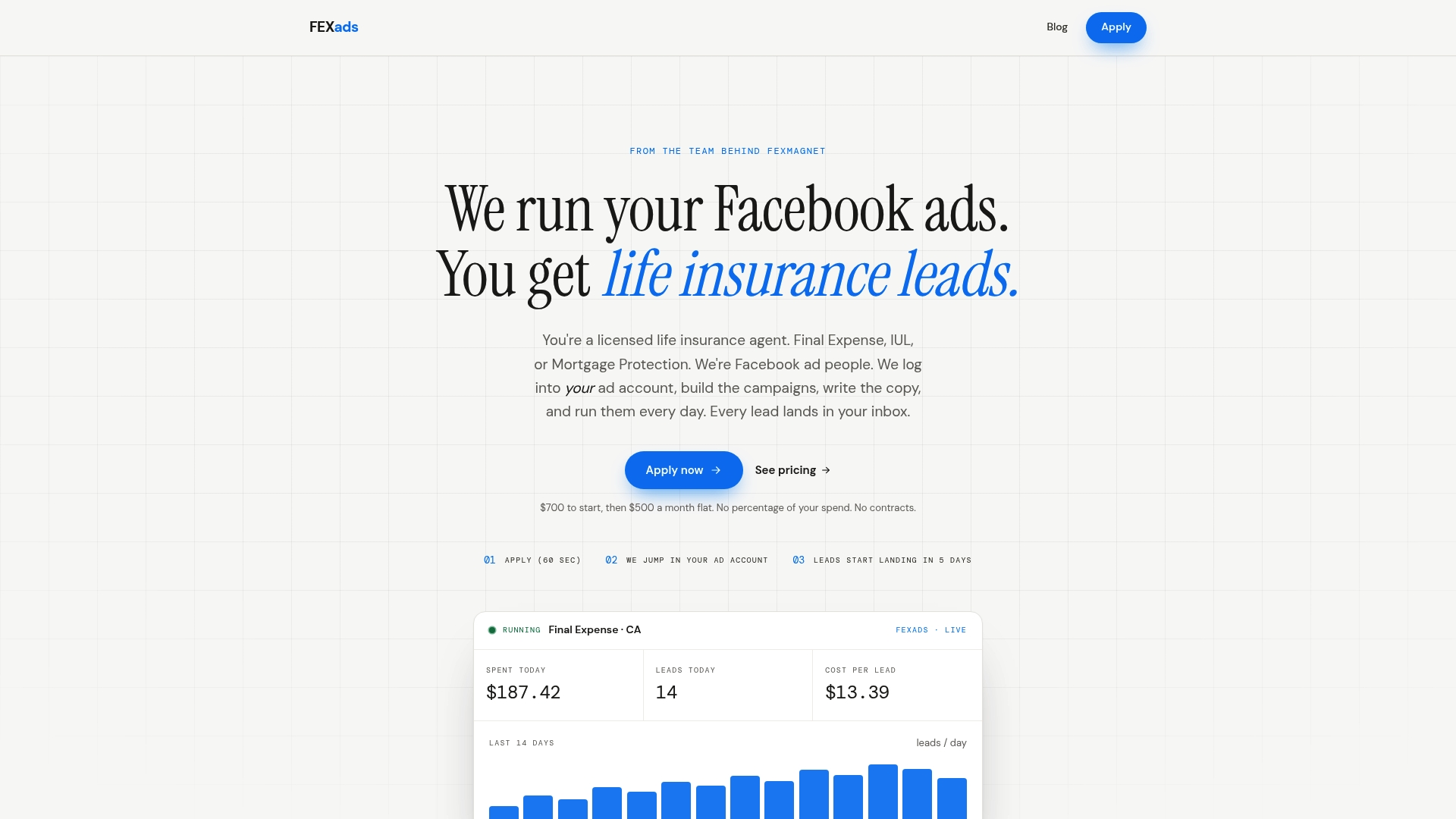
Setup runs as a one-time $700 fee covering custom campaign build, website creation, and pixel installation, followed by $500-per-month management that includes daily optimization, billing governance, and compliance checks. Instead of guessing at a spending limit and hoping nobody forgets to adjust it, agents get an account audit as part of onboarding, with the limit set deliberately around real budget targets. Ready to see where your current setup stands? Request an account audit and get started directly through FexAds.
Where to Verify These Rules Yourself
For the official steps and definitions, check Meta’s own pages: setting an account spending limit and how daily spending limits work.
Sources
- Set an ad account spending limit | Meta Business Help
- About Ad Account Spending Limits | Meta Business Help
- How to view served and billed costs (example documentation)
FAQ
How Do I Edit My Spending Limit on Facebook?
Go to Ads Manager → Billing & Payments → Payment Settings, find the Account spending limit section, and click Edit to enter a new amount. The change takes effect immediately, and if you raise the limit above your current amount spent, paused ads resume right away.
What Is the Minimum Amount You Can Spend on Facebook Ads?
Meta generally allows daily campaign budgets as low as a few dollars, though the practical minimum depends on your bidding objective and currency. Most agents find that anything under roughly $10 to $20 per day struggles to exit the learning phase or generate meaningful lead volume.
Is $10 a Day Enough for Facebook Ads?
For final expense or IUL lead generation, $10 a day is usually too thin to gather enough data for Meta’s delivery system to optimize effectively. Agents typically see more stable cost per lead once daily spend climbs into the $30 to $50 range, though actual figures vary by state and offer.
How Do I Update My Spending Limit?
Updating works the same way as setting one initially: open Payment Settings in Ads Manager, click into the account spending limit field, and enter the new number. There’s no separate “update” button. It’s the same edit flow whether you’re raising, lowering, or removing the cap.
Recommended
Want us to run your FE ads?
$700 to launch, custom website included. $500 a month flat after that.
Apply now